Clickbank is an affiliate program with lots of high-commission products you can advertise on your blog. Alinks is a WordPress plugin that can make it easy to drop “auto-links” to the high commission products. I told Jude I’d explain how to use both together.
I’ll assume you know how to install a plugin, and then give a detailed explanation of what to do. So, go get aLinks and the aLinks module for clickbank. Install and activate aLinks. Unzip the aLinks Module for Clickbank and leave that somewhere easy to find on your computer.
So, you’ve installed aLinks and activated, right?
Now, here’s how to create an auto-link to a Clickbank product.
First, go to the administration area in WordPress. You click “aLinks” to open the aLinks administration screen. It will look
sort of like this:
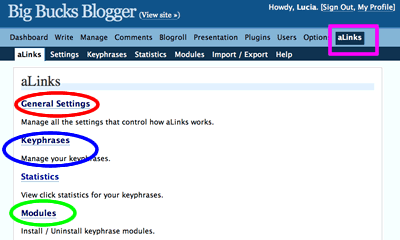
Next, click “modules”. That will open a screen that looks sort of like this:
Except, if you haven’t yet installed the Clickbanks module, it won’t be there. So, scroll down to the uploading area which I have outlined in red.
Click “browse” to find the Clickbank module on your home computer. Upload. It’s now installed- you’ll see it in the modules area.
Now, go back to the Clickbank administration area. This time click “General Settings”. That will open a screen that lets you set some permanent choices for various modules installed.
The ClickBank portion looks like this:
You need to add your Clickbank nickname. Oh my…now what is that?
Well, your Clickbank nickname is created when you join clickbank. You use the nickname every time you log in- and Clickbank greets you with “Hi XXXXXXX”. So, do remember that nickname when you join Clickbank. Enter that name in the aLinks text box and save.
You are now finished with the General settings. Go back to the main admin board and click “keyphrases”.
Notice you must enter three things: a Keyphrase, a product ID and a Description. Now, let’s figure out the Clickbank productID!
To do this, open a second browser window on your computer and visit Clickbank; log into your account and visit the marketplace by clicking “marketplace”. The screen will look like this:
Use the various pulldown menus and submit buttons to find something you’d like to advertise. Once you have, click the word “hoplink” underneath the opportunity.
A clickbank window will open asking for that nickname again — enter that. Ignore the other blank box and click to submit.
You will be shown the hoplink similar to this:
Notice that after the hoplink is in the form:
This hoplink contains the information you need to enter into the aLinks box product ID box! The productID for the product I want to create a link to is “bryxen1″.
To make aLinks create links to the product ID “brixen1″, enter “brixen1″ in the “Product ID” box on the aLinks screen.
Now, you’ll want to pick a “keyphrase” and a “description”. Both are entirely up to you. I decided that I wanted aLinks to automatically create a link to this affiliate product the first time I wrote “SEO Software” at my blog. So, I entered that as the keyphrase for this product.
Notice how my first mention of SEO Software in this article became a link? Alinks did that!
Oh… before I continue, don’t forget to save what you entered. 
You can enter anything you want for the description. But, to find out what it does, why don’t you mouse over the link to SEO Software aLinks created above? I bet that just makes you want to click and buy that software, doesn’t it!
Now, I bet you are wondering: How can this make you more money than just creating an ordinary link evertime I want to blog about this software? Easy!
This is the second time I’ve dropped a link to this product. The first time I dropped that link, I actually visited Clickbank and found the software. But, from now on, aLinks will do this for me; I don’t need to remember the hoplink. And given my niche, you can also be pretty sure I will be writing more posts about “SEO software”. Curious visitors may click that link, like the software and buy it.
What’s even better is that if this software company ever stops paying commissions, I can edit the hoplink to point to other software: All my old links will point to commission paying software.
So, four months from now, or 4 years from now, when people visit this blog post, the link will still be paying out big bucks to me!
I hope this paves the road to Big Bucks for you too!