Reading Matt Cutts blog, I got a chuckle when I read a blog security tip I’d been using at my blog for two years. Evidently, the tips is news to SEO blogging types? 
(Which maybe means if you get your security tips from knitting blogs, you an avoid getting hacked the way Greywolf was in January of 2007?)
Anyway, since I know this can happen to anyone, I’m going to describe what the hackers do, and then describe two things you can do to increase security against these hacking attempts.
One will require you to deal with ‘.htaccess’ manually, but results in the most convenient set up while working at home. The other involves using a brand new plugin available at Ask Apache. That plugin is almost perfect. However, it could be improved. Because I got an error when trying to leave comments at “Ask Apache”, I’m going to suggest improvements to the plugin. (The developer asked!)
If he or she takes the suggestions to heart, this will be a truly awesome plugin. (It’s already very useful.)
So, now onto the meat of the article.
What do hackers do?
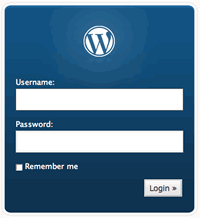 To amuse themselves, hackers load your login screen. Then they running a script that guesses the “name” and “password” in the login screen. The script just keeps guessing over and over and over. Eventually, they get in.
Once into admin, they replace the front post of your blog with one of their own; they frequently point to a page announcing they hacked you.
Luckily, most these hackers are out for fun and don’t really do much else but they could! Once they break into your admin area, they can do anything the you could do with your blog- including deleting all the files. They could change your email and password. They can do an awful lot.
So, you really don’t want to let this happen.
Because savy SEO types were hit this year, WordPress may have done some work to make this more difficult for hackers. But, frankly, if you can get in, it’s possible for someone to get it. All WordPress can do is make it take longer to guess your user name and password.
So, it’s still prudent to protect your admin area, using a stronger block than WordPress can provide.
How To protect Your wp-admin File: Very Secure Method.
To protect your blog from being defaced, you need to write a small text file that looks sort of like this.
Order allow,deny

Allow from 131.215

Allow from uiuc.edu
If this file is given the name ‘.htaccess’ and loaded into your wp-admin directory for your blog, the server will block everyone except a) people with IP’s that begin with 131.215 or b) people with IPs resolving to uiuc.edu from accessing anything in your wp-admin directory.
This includes the login screen! See how this keeps hackers out?
But I bet you aren’t at the University of Illinois and your IP doesn’t start with 131.215.
How do you set this so you can get in?
Now, you need to edit the lines to match your IP or your ISP. For example, if you access your blog through aol.com, you will edit “uiuc.edu” to read “aol.com”. Then people at uiuc.edu are blocked from the log in screen, but anyone with IPs supported by “aol.com” can access the login screen. Also, you’ll also want to discover your IP address and edit 131.215 to match your IP.
Note: Your IP is actually longer. It has 4 sets of three digit numbers like this: 123.456.543.211
If you enter 123.456 everyone whose IP starts with 123.456 can get in. If you enter the full number, only those with 123.456.543.211 can get in. There are advantages to both.
Also, if you notice your ISP gives resolves to a subdomain (like say, “aol.com” gives you “ca.aol.com” ), if you the subdomain, you’ll get more protection than using “aol.com”.
I have multiple users. Can I add them?
You can add as many exceptions at you like: just start with ‘Allow from’ and add the suitable ending. So add the IP address for your work place or any other places you might wish to access from.
I have approximately 10 “Allow from” lines in my .htacess file.
Save the file
After editing, save the file as ‘htaccess’ with no dot. That way you can see it on your pc or mac!
Next, ftp this file to your wp-admin directory (aka folder) of your blog. (Don’t put it in the root of your blog.)
Next, verify you are in the correct directory and change the name to ‘.htaccess’. (The dot is important.) Verifying that you are in the correct folder is important because you do not want to overwrite any pre-existing ‘.htaccess’ files in the root directory! If you do, you will screw up your blog permalinks. (You can fix that, but it’s work.)
Next: visit the admin panel of your blog as you would to write a post. If you can’t get in that means you have a typo in the IP address or the domain name of your ISP. Fix the typo in the ‘.htaccess’ file and overwrite the old one. Once it’s ok, you can access your blog!
How well does this work
This protection gives great security. The only problem is you might need to access with some other IP address when you go on vacation or travel for work a lot. I bet you don’t know you hotel’s IP address!
The other difficulty is your IP address may not be static. For example, it might be 123. 456.789.123 today and 123.456.789.124 tomorrow. If you wrote your file giving permision only to 123. 456.789.123 you’ll get in today but be blocked tomorrow.
However, by using the domain name (i.e. aol.com) or just the first six digits, you get around that problem.
That leaves vacation!
But I dotravel and I don’t know my hotel’s IP address!
Well, if you travel a lot, instead of using IP protection, you can set up a secondary password protection scheme.
I could tell you how to write this, but actually, a very nice person has written Htaccess Password Protect plugin!
The developer just published this and asked for suggestions. (I’m going to make some.)
The plugin is already useful. You can use it password protect access to your login screen without fiddling with htaccess. To do so, first visit the Ask Apache. Get the plugin. Upload; activate. Under “options” in your “WordPress admin” area, find “AskApache”.
For now, use the “password only” option. Select a “Ask Apache” username and password- if you have any brains, both should be different from your WordPress username and password. Type those into the appropriate boxes. Then enable password protection by clicking. (Do not add the IP protection unless you are absolutely, positively sure your IP is static. Mine is not. It changes about every 2 weeks.)
When you click, the plugin will create an .htacess file that will password protect your wp-admin file.
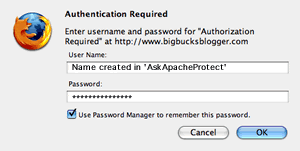 Now, when you try to log in, you will first see a password screen similar to the one shown. When you see this screen, enter “Ask Apache” user name and password you created, then click.
Now, the WordPress access login screen will show up! So, what have you done? You’ve doubled bagged your wp-admin area.
Does this seem silly and a bit inconvenient? Well, it’s a bit inconvenient, but it’s not silly.
Plus, the developer has asked for suggestions. I have some and if they are implemented, this plugin will give awesome protection that is both more convenient and flexible. And if you keep an eye out, you an get this after it’s improved.
Recommendations to developer:
To help bloggers with dynamic IP’s, or who access from multiple locations, modify the ‘IP’ portion of your protection to permit the user to include multiple IP’s, truncated IPs and domain names.
That is, let me enter 123.456, then let me enter 234.421 as well. Then also let me include both uiuc.edu and aol.com.
Once you’ve done that, permit bloggers to select
a) password only (which is good while on vacation)
b) IP only (more convenient when not on vacation) or
c) password and IP (for the truly paranoid!)
But most of all: Kudo’s for thinking of this!
Is there some sort of plugin that restricts login attempts? I appreciate the cleverness of this htaccess method, but it seems a little messy, especially when correcting for remote logins.
The hacker’s brute-force method depends on trying many times, quickly. A common way around this in the desktop world is to allow 3 login attempts, and if they all fail, block any logins for, say, 30 seconds. It seems to me like it would be “cleaner” this way?
Hey fantastic article! I just got finished updating and posting new code for the plugin… basically I just made the code more robust so that all these suggestions can be more easily implemented.. stay tuned!
That is very true… If only I was as good at blogging as you! Then I could get the word out much better… I added your recommendations to a TO-DO list, this plugin is just going to become more powerful in terms of the options available to be set by blog admins..
Also adding a .htpasswd user management page that will let you add and remove additional .htpasswd users. Thanks again for such an easy-to-read post!
Ya I love Matt too, great idea!
I am just putting the finishing touches on an auto-updating feature to the plugin.. basically it checks a file on my server for the latest version number, and if its newer than the current installed version it will install the new version hands-free. I dig it.
That way people won’t have to keep coming back to the plugin home page and re-downloading/installing every time I make an update.. and the code is on fire right now so there are a lot of updated versions coming out
[...] Protect your wp-admin area using htaccess. Hacking into wp-admin is a common tactic. I discussed the steps you can take to protect that area of your blog in Blog Security: htaccess block. [...]
Of course if you want to use the subscriber functions in WordPress these methods won’t work for you. But if you don’t allow people to register on your blog, it’s a great idea to implement this.
Also if you do this you can also do it with your /wp-includes/ directory. But if you make changes to the admin be sure to change the includes too, or all of the nifty new AJAX will quit working, and in the new WordPress versions, you can’t really even post properly if the AJAX stops working.
[...] travel, I’m going to continue to protect by limiting access to those using my ISP using .htaccess. But I’ll be testing out the Log In Lock Down in parallel. var AdBrite_Title_Color = [...]
Perhaps an approach where if an account has been logged into more than once a Captcha-type image is displayed, such as the method used by both Wikipedia and Google to prevent brute-force attacks? This way is probably better for developers building apps for public use, along with Sam’s.