Archive for the ‘Blogger’ Category

How to Install WordPress: Upgrading a Blogger Blog to WordPress for Beginners, III

Friday, October 5th, 2007

Continuing in the lesson on how to upgrade Blogger to a WordPress installation! Today, I’ll explain how to install WordPress on the web site you got up and running yesterday. (For earlier lessons click Getting a hosting plan and Creating your “website”.

I hope the length of these directions aren’t frighntening you off! What I’m trying to do is give a detailed illustrated explanations for an instruction that some bloggers would explain in this single line:

“To install WordPress at Dreamhost, click ‘Goodies=>OneClick Installation=>Select options’ Then click to activate”.

My explanation will include screenshots, words, and also try to explain how the same advice applies if you use Fantastico instead of “one click installation”.

So, how to actually install WordPress

There are at least two ways to install WordPress: The extremely very easy way and the “hard” way. It’s not that hard.1 Nevertheless, I advise installing the easy way:

The easy way to install WordPress

  1. Use a hosting plan that offers “one click installation” or “fantastico” for WordPress.
  2. Fill out an easy form, click a button. Wait 10 minutes.

I use Dreamhost, so I can show you how to do a simple install using their service. If you use another service, you will likely find “Fantastico”, which has very similar steps. (But the screen shots will look different.). If you can’t find either, ask your support service where to find one of these services.
How to use Dreamhost’s ‘one click’ installation.

(more…)

Upgrading a Blogger Blog To WordPress, Lesson IV

Friday, October 5th, 2007

Today, we are actually going to import the Blogger Blog to WordPress! Those wishing to transfer from Typepad etc. can read this and figure out how to do that too.

Preliminaries:

This post assumes you have already 1) created a hosting plan, 2)Installed WordPress, and now have a useless empty WordPress blog installed on your site.

That means you are ready to import your Blogger blog. To avoid a little confusion later, I advise logging into your Google account before we begin.

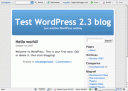
Default ThemeNow, visit your WordPress blog by entering it’s url. If you didn’t change themes, your WordPress installation resembles the one to the left. I didn’t tell you to log in an fiddle with themes, but I bet you did. That’s ok.

Now we’re all set.

Login to Your WordPress Administration Panel & Get to the Import Screen

Now, you will want to login. Most likely, your blog theme will have a “login” button somewhere on the sidebar, click that. If not, you need to tack-on “/wp-admin” to your blog url and if you aren’t logged in, you will be asked to log in. Enter your username (which, I bet is still “admin”) and password (which was set for you when you installed WP.) Click to log in.

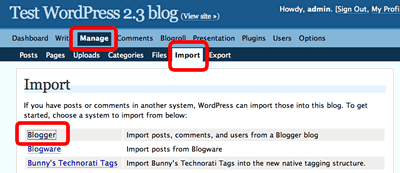
You will now arrive at the Administration screen; the top two bands of the dashboard will look the illustration shown below. There are a number of choices including “Dashboard”, “Write” etc. Click “Manage”. This will change the second line, and you will now see an option called “Import”. Click that.


Get to Import Screen

(more…)

Upgrading a Blogger Blog to WordPress for Beginners; Lesson II

Tuesday, October 2nd, 2007

This the second article in a series explaining how to upgrade your Blogger blog to WordPress running on your own domain. Yesterday I described preliminaries, like getting a hosting account and a domain name. Today, I’ll discuss how to actually get your “site” up. Tomorrow, I’ll describe how install WordPress. Afterwards, I’ll finally get around to telling you how to import your Blogger blogs!

Now, when I write “how tos”, I like to explain both the goal and give the step-by-step instructions. Some readers like to read the goal first, and the step-by-step instructions second. Some like the revers. Today, I’ll describe the goal first.

What are you trying to actually accomplish with today’s “how to”?

Remember yesterday, I told you to you set up a hosting account, register a domain and arrange the DNS pointers to “find” your domain which, for the purposes of discussion we’ll call, “myblogdomain.com” at your host. Then, I said to wait 24 hours. So, you waited.

Now, I bet you think you can just enter “http://myblogdomain.com” into your browswer, and you’ll find something. Well… probably not. Or at least, you won’t find anything useful. Why not? I’ll explain using an analogy.

Think of your hosting account as providing you a big pc (aka ” server”) that is located “over there”. My hosting account is Dreamhost, which means my “big PC” (aka “server”) happens to be in California. (more…)