Monday, I told you about Exoclick, a pay-per-click (PPC) program matches ads to key words a blogger selects. Both John Chow and I think that for some bloggers, this program may be more profitable than contextual programs like AdSense or Kontera.
To maximize profits on PPC ads, you need to place them in profitable locations. But many bloggers have difficulty positioning them in the high profit spots. Today, I’m going to show you how easy it can be to insert Exoclick ads or into your blog content where the click rate is high. I use this same easy method to insert AdSense and Auction Ads (but it’s doesn’t quite work for Clicksor.)
Notice how I am inserting my PayPerClick ads near the second paragraph of text? That’s where people who read the first paragraph and decided not to read further are very likely to click. Those clicks earn big bucks. They could help you make money online too!
How to Insert PPC Ads in Content With Ease!
You can insert ExoClick ads in just a four easy steps! And “four steps” includes signing up with Exoclick! After you insert your first ad, inserting later ads will require only one easy step!
Here are the steps:
- Install and activate the Adsense Deluxe Plugin and sign up for ExoClick using their convenient form.
- Visit your ExoClick account, click “ad boxes” on the left sidebar. Now, use the pull down menus to select ads features. (I like small rectangles inserted into my content, so I picked that. Thinking “money” I also selected green for the links.)
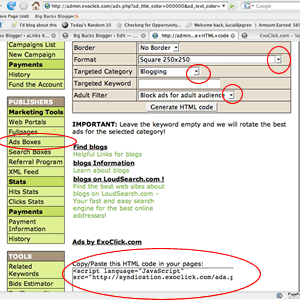
- Visit your blog admin panel, open your Adsense Deluxe window by clicking “Options” and then “Adsense Deluxe”. When the Adsense Deluxe page opens, click “Add New”.
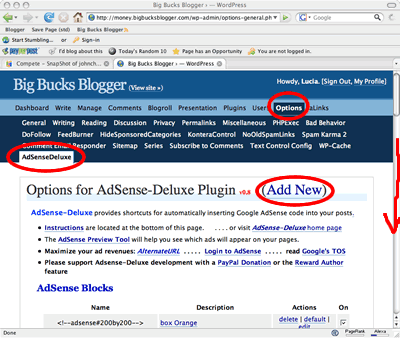
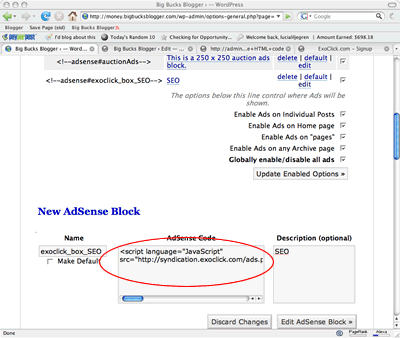
The window will automatically scroll down an entry box. Paste the ExoClick Javascript into the center box. (Yep, just like you do for AdSense or AuctionAds!)
Give this “ad” a name; I called mine “exoclick_box_SEO” by entering that in the box on the left hand side. Save.
- To insert this ad into content just type <!-adsense#exoclick_box_SEO-> where you want the ad “exoclick_box_SEO” to appear. ( I have to admit though, I actually tend to adjust the placement by surrounding adding “div” tags. So, I really insert this: <div style=”float:left; margin 2px 10px 2px 2px;”><!-adsense#exoclick_box_SEO-></div> .)
That’s it. And from now on, to insert more ads in content, just insert <!-adsense#exoclick_box_SEO-> where ever you’d like the ad to appear.
That’s easy right? But there is an added bonus: Suppose next week you change your blog template and the colors of your ExoClick ads clash with your new theme? Well, just visit Exoclick, select new colors, copy the javascript from Exoclick and edit the ad in Adsense Deluxe. Every ad in your blog will change colors to match the colors you selected!
 I bet you’re thinking: Oh, that’s easy and convenient!
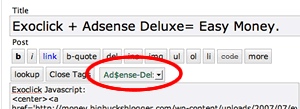
But guess what? It’s even easier for WordPress users who have not updated WordPress too recently. Believe it or not, Adsense Deluxe has a pulldown menu. After you do your first “Save and Continue Editing” click on an article, you may notice a pull-down menu appears. To insert the ad, just click your mouse where you’d like the ad to appear, pull down the menu and select the correct ad.
Unfortunately, the WordPress screen in the newest updates doesn’t display this pull-down menu- so you’ll need to remember the ad names yourself. (You can always visit the Adsense Deluxe pane, where you will find them listed.
See how easy it is to profit using ExoClick? You can test this out by visiting Exoclick and opening an account today!