Has your service provider complained you are using too many server resources? This could happen because you have a really popular blog or blogs (like Tricia) or it could happen if you have installed a poorly written plugin that’s a real CPU hog or it could be a combination of both! Regardless of the reason, you can continue to run your blog by paying more for a dedicated server, but that costs big money.
If all your plugins are reasonable efficient and provide essential services, then spending for a dedicated server is well worth the money.But how can you make a lot of money if you waste money paying for a dedicated server just to run a CPU hogging plugin?
Unfortunately, it’s difficult to identify which of the zillions of plugins you use is the hog. Bloggers randomly turn things on and off hoping to find the problem. Now “PluginHogDetector” will at least help you identify the problem.
How to detect the CPU hog!
- Dowload PluginHogDetector. Unzip, upload into your plugin folder, activate.
- Turn off WP-Cache. Load a page of your blog. (If you are using any plugins that modify comments in any way -for example, a dofollow plugin — I strongly advise you pick a page that displays an article and comments. )
After you load the page, scroll down, you will find a hideous table that resembles the one below:
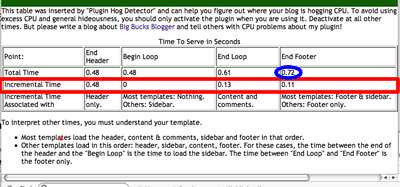
Note the time circled in blue; record it. That’s pretty much the time it took for WordPress to serve your whole page.
Reload the page, and record that time again. Do this a third time. That’s probably enough data.
- Go to your plugin control panel. Turn off the plugin you suspect might be “the hog”. Reload the same exact page you loaded previously and note the total time to circled in blue. Do this three times.
Compare these values to the ones you got when the plugin was not running. If the times required when the plugin is running are distinctly higher than those when the plugin is not running, you have found a CPU hogging plugin!
That’s the basic procedure. But you can use other data to help guess which plugins are “suspicious”.
Advanced Troubleshooting.
I’m sure you noticed I provided “incremental times” in the third row of the table? By repeating the procedure described above and recording times in the “incremental time” row, you can isolate where the big jump in CPU is occurring.
Notice the final row in the table suggests which “areas”, like “content & comments”, “header”, “sidebar” or “footer”, where your plugin may be bogging down your blog.
Some plugins do most their work in the header. These include spam filters and a few others. You need the spamfilter, but it’s worth being aware of this fact.
Some plugins do their “heavy lifting” in contents or comments. For example that’s where Kontera Control and Do Follow plugins do their work in contents and comments. If you see the time for comments & contents jumping, you should suspect plugins that do “something” in contents or comments!
Other plugins do their heavy lifting in the sidebar; very few do anything CPU intensive in the footer. If you read the final row, you’ll notice the time sucked up by the sidebar affect the second or the fourth incremental time listed in the row.
Where is your sidebar data? Well, I started writing a four paragraph explanation of template organization, but all you need to know is that, for most templates, the time to load both sidebar affects the last time in the “Incremental time” row. For these templates, the second time in that row will be very, very close to zero, because that’s “time to do nothing”. Notice that time is listed as “0″ in my table? It rarely takes more than 0.03 seconds to “do nothing”.
But what if you don’t see a “0″ or at worst a “0.03″ in that box? Well, you’ve found the time to required to load your sidebar!
What type of plugins run in the sidebar? Well, look at your sidebar. See recent comments? Recent posts? Cloud tags? If a plugin affects something that displays in the sidebar, it could be a sidebar CPU hog.
Quick trouble shooting to identify the “suspicious” plugins.
Now, you can use this information to do some quick trouble shooting. Turn off all your plugins, check the incremental times. Turn all the plugins on. Did the time jump in the “contents & comments” area, or the sidebar? If it’s one and not the other, you now can start guessing which plugins are worth looking at first. That will save you some time testing every single plugin!
Hope this saves you Big Bucks
I hope this plugin helps you find your the plugins that may be hogging CPU at your site. Then you can deactivate and save money by staying with your current low cost hosting serving.
Or, maybe it will help you discover that it’s not your plugins and you will need to get the dedicated server. (In which case, I envy you your traffic!) Or, you’ll discover it’s something else altogether.
Either way, good luck with your blogging. (And let me know if you have any trouble with the plugin.)
I just activated it and ran it a few times. I’m getting good speeds right now. Later, after I get my new theme finished, I’m going to try it again and then I’m going to re-activate some of the plugins that I think may have been giving me problems previously.
I’ll be sure to give your plug in a good write-up, too!
Thanks!
well my sites are down today so I didn’t get a chance to try out your plugin. GRRRRR I’m so friggin mad right now.
I’ve written to my hosts support twice and left them a phone message … no reply yet. I need to get my sites back up.
OMG! You don’t know how handy this will be. I’ve been having them dreaded CPU Exceeded errors pop up on my site.
I’ll have to download this and test it when I get the chance.
You should have a list of the plug-ins you found to be resource hogs.
Also, could CPU overload be caused by the theme itself???
I were absolutely correct about plugins that do heavy lifting in the comments area. The bigger number of comments, the heavier lifting, the more resources are used… At least that what I noticed. Since turning on the CGI acceleration I did not see the CPU related notice yet. But I am hanging onto this little plugin!
Thanks for this plugin. I seem to be addicted to downloading every col sounding plugin I come across. but yours is actually beneficial. I’ve been wanting to weed out some of the plugins I’ve made excuses for having, and i think you have helped me a great deal.Thanks again!
[...] Resource link to download the PluginHogDetector Plugin [...]
Hi,
Im already activate the plugins but im not see the hide table stated? how can i see it?
Hello -
Thanks for a great plugin. I have been having slow loading issues, and have started a post on the subject — featuring your plugin as a “savior” — at the wordpress forum. See:
http://wordpress.org/support/topic/141011?replies=2
I have posted reference screenshots there (showing performance at WebHelperMagazine.com) and suggested others with similar issues do same, so it should be an interesting thread. Right now I am looking hard at the plugin, Configurable Tag Cloud, as a possible resource HOG candidate. Ever heard of that one?
I think the thread at WordPress will help folks learn to use your plugin to nail the load hog culprits. I plan to write an article on the subject at WebHelperMagazine.com.
Thanks again for your plugin. Do you plan to put up a donation link?
Yours, Scott