Today, we are actually going to import the Blogger Blog to WordPress! Those wishing to transfer from Typepad etc. can read this and figure out how to do that too.
Preliminaries:
This post assumes you have already 1) created a hosting plan, 2)Installed WordPress, and now have a useless empty WordPress blog installed on your site.
That means you are ready to import your Blogger blog. To avoid a little confusion later, I advise logging into your Google account before we begin.
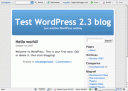 Now, visit your WordPress blog by entering it’s url. If you didn’t change themes, your WordPress installation resembles the one to the left. I didn’t tell you to log in an fiddle with themes, but I bet you did. That’s ok.
Now we’re all set.
Login to Your WordPress Administration Panel & Get to the Import Screen
Now, you will want to login. Most likely, your blog theme will have a “login” button somewhere on the sidebar, click that. If not, you need to tack-on “/wp-admin” to your blog url and if you aren’t logged in, you will be asked to log in. Enter your username (which, I bet is still “admin”) and password (which was set for you when you installed WP.) Click to log in.
You will now arrive at the Administration screen; the top two bands of the dashboard will look the illustration shown below. There are a number of choices including “Dashboard”, “Write” etc. Click “Manage”. This will change the second line, and you will now see an option called “Import”. Click that.
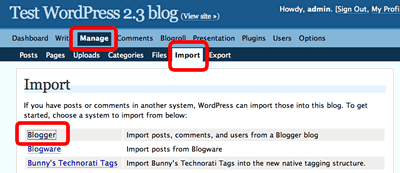
By the way, you might as well learn jargon right now. the “Short hand” for the paragraph I just wrote is visit “Manage => Import”. Most WordPress document will say that instead of writing the full paragraph I just wrote!
After you do “Manage=>Import”, a screen displaying importing options will open. It will tell you you can import from Blogger, Typepad, and a huge number of other blogging platforms. Click “Blogger”.
Yet another screen will open. It looks like this:
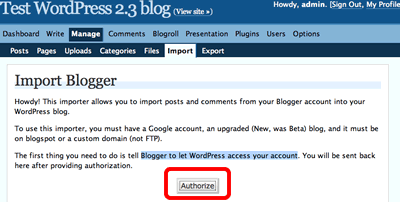
Click ‘Authorize.’
If you had already logged into your Google account, Google will ask you to “Grant Access” to the requested transfer.
Click Grant Access!
Actually Import
To actually import, select the Blogger Blog you want to import and click to import.
The import button will say “Importing” while the post import. If you have a lot of blogger posts, this could take some time. So, be patient.
When all your posts have been imported, the “Import” button will change to a “set authors” button. Click that.
You’ll now get to assign all the blogger posts to a particular author.
On a freshly installed WordPress blog, the only available author will be “admin”, pick that user. Otherwise, if you went ahead and created the user you really want for these posts, pick that user. (If you assign them to admin, we can fix that up later.  )
)
We are done for today!
Yes. We are really done. Though it’s nice to check. So, click “Manage => Posts” and look. The Blogger blog I set up contained exactly 1 post created way back in April. It was titled “Hello World” (just like my first WP post.) If you look, and compare dates, you’ll see that post is now at my WP blog.
Is there anything left to do?
We’ve actually imported from Blogger now. So, technically, I’m now finished telling you how to import a blogger blog!
However, if you aren’t accustomed to WordPress, you will want to learn a number of key things. That means, I’m going to start a series with a more general title, maybe “Getting Familiar with WordPress?” or “WordPress for Newbies”?
What will we do in the next series?
We are going to fix things up so you display a decent user, learn to slide in themes, learn to adjust .htaccess for security, learn to install key plugins and other things all new WordPress users should do (but don’t normally know they should do!)
This is a series: Upgrading from Blogger To WordPress href=”http://money.bigbucksblogger.com/upgrading-a-blogger-blog-to-wordpress-for-beginners-lesson-i/”>Part I, Part II , Part III , Part IV .
[...] is a series: Upgrading from Blogger to WordPress Part: I, Part: II , Part: III , Part: IV. Tags:Upgrading from Blogger to WordPress WordPress If you like my post, please use click [...]
[...] This is a series: Upgrading from Blogger to WordPress Part: I, Part: II , Part: III , Part: IV. [...]